Status pages publish a deliberate subset of project monitoring at /status/<slug>. They are unauthenticated when enabled.
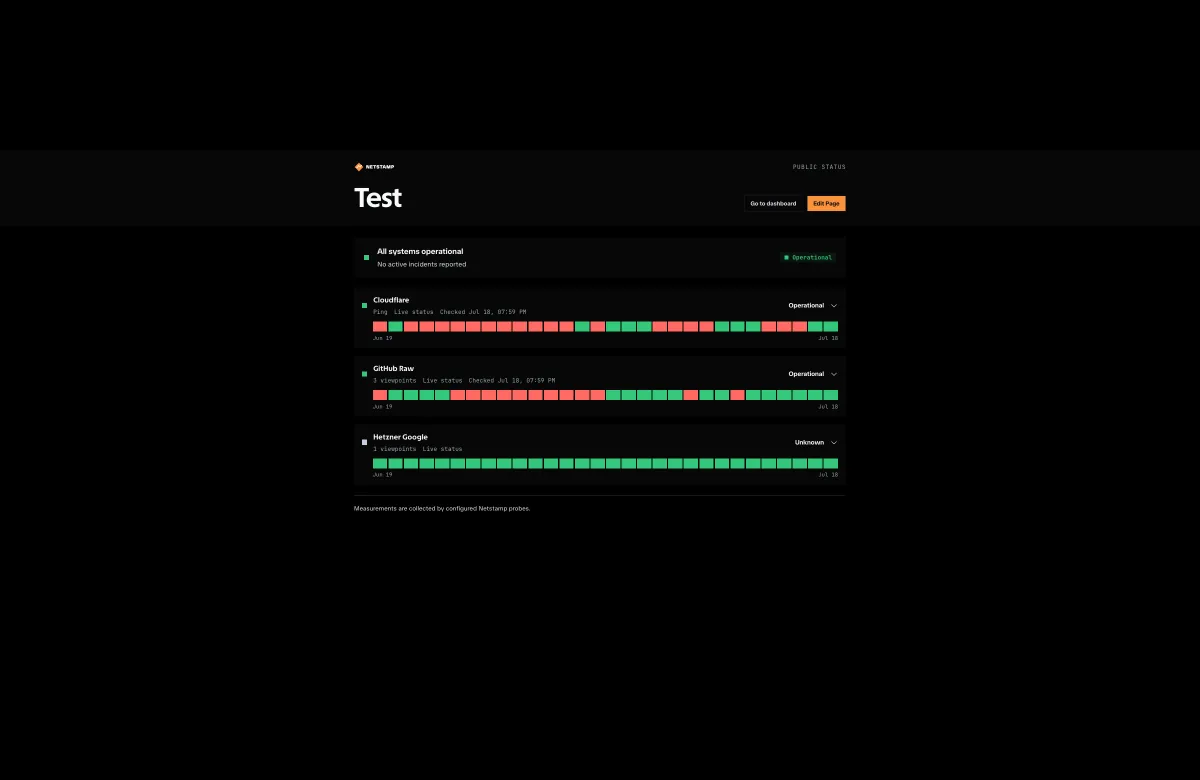
Create a page
- Open Status and create a page.
- Set a lowercase slug, title, and optional description.
- Choose light, dark, or automatic theme.
- Configure visibility and chart defaults.
- Add groups and blocks.
- preview the page before enabling it.
Slugs contain lowercase letters, digits, and hyphens and are unique within the instance’s public routes.
Page visibility controls
Review every switch before publishing:
- show or hide check targets;
- show or hide probe names;
- show or hide probe locations;
- show or hide incident history;
- show or hide the generated timestamp;
- enable or disable default compact charts;
- choose a default range of 24 hours, 7 days, or 30 days.
Disabling a page makes public data unavailable without deleting the builder configuration.
Groups and blocks
The builder has two element kinds:
- Group (
folder) organizes child blocks. - Block (
assignment_group) summarizes one check across all or selected assignments.
A block can render:
| Mode | Purpose |
|---|---|
| Status | Current operational, degraded, down, or unknown state |
| History | Daily state and incident markers |
| Latency | Compact metric history |
| Map | Public probe locations and assignment state |
Reorder elements in the builder. A block may inherit page chart settings, turn its chart off, or use a compact chart with its own range.
Assignment selection
Choose all assignments for the check when the public block should track future matching probes automatically. Choose selected assignments when the published set must remain explicit.
After changing check selectors or probe labels, preview pages that use all assignments and confirm that newly matched probe details are safe to publish.
Incidents
When incident history is enabled, the page exposes active and recently resolved incidents associated with published checks. It can show status, severity, opening and resolution time, and a metric summary.
Branding and custom CSS
Pages support a banner image URL, footer text, theme, and custom CSS. Use an absolute HTTPS image URL. Keep custom CSS narrowly scoped, test both desktop and mobile widths, and verify focus visibility and text contrast after every change.
Custom CSS can make a page unreadable without changing its data. Keep a known-good copy outside the editor before a large style change.
Publish safely
- Use a non-sensitive slug.
- Confirm targets, probe names, and locations are intentionally public.
- Test enabled and disabled behavior in a signed-out window.
- Check status, history, latency, and map blocks with real data.
- Confirm incident details do not reveal internal names you intended to hide.
- Re-test after assignment, label, or check changes.